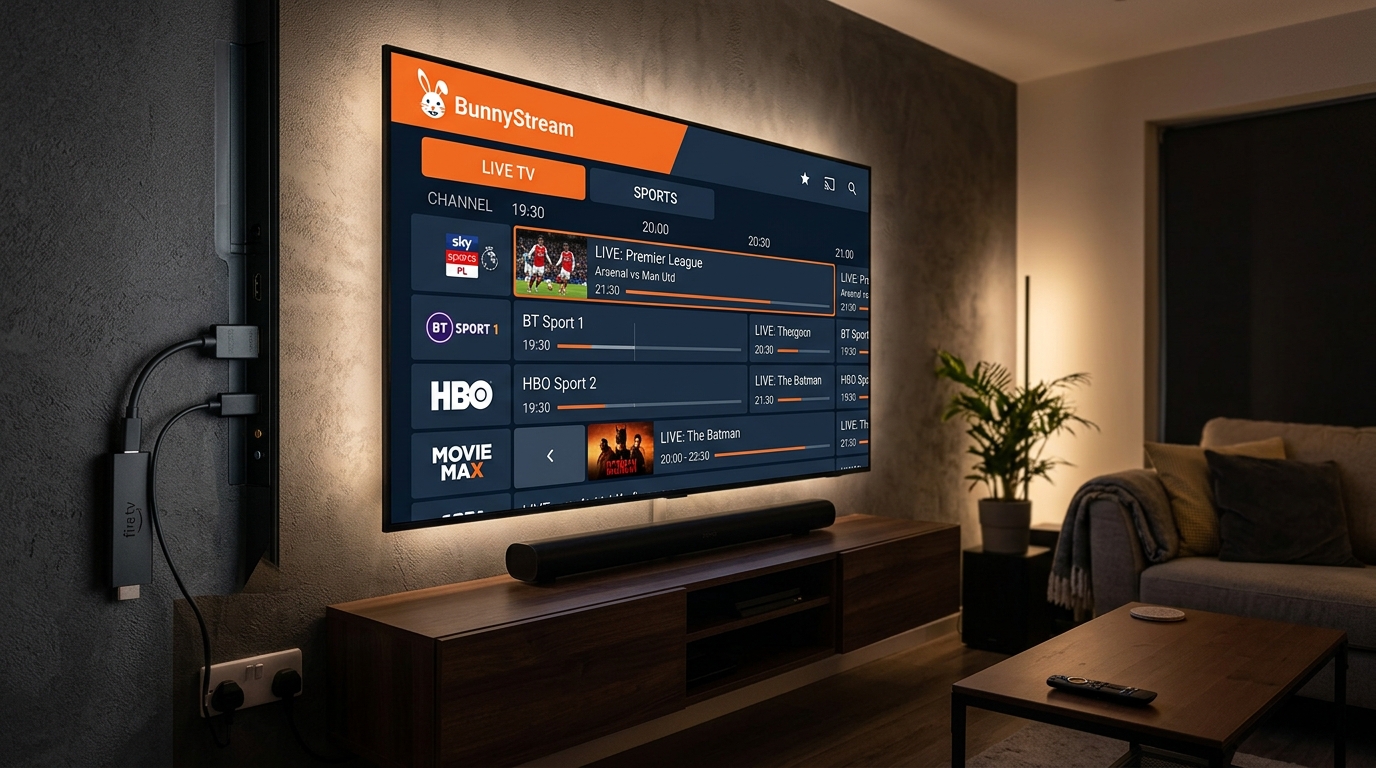
According to our 2026 tested guide, the best IPTV players for Firestick are TiviMate IPTV Player for viewers who prioritize a premium cable-style grid guide and IPTV Smarters Pro for users seeking a versatile, cost-free media manager. An IPTV player is dedicated software that decodes streaming feeds, organizes live television channels, and syncs electronic program guides (EPG) on Amazon Fire OS hardware. While a player optimizes playback controls and UI navigation, it requires a high-performance streaming subscription from a reliable service like BunnyStream to provide active channel streams, live sports broadcasts, and video-on-demand libraries.
Understanding IPTV Players vs. IPTV Subscriptions
Newcomers to streaming media frequently confuse media player software with the underlying IPTV service. A player application provides the graphic user interface, playback buffer engine, and remote control integration. In contrast, the IPTV subscription supplies the secure video feeds, content delivery network (CDN) bandwidth, and channel playlists.
Even the most advanced player application cannot resolve playback stuttering if the incoming stream suffers from underpowered host servers or unoptimized routing. Pairing a dedicated IPTV player with BunnyStream ensures your Firestick receives balanced 60 fps feeds backed by distributed server infrastructure designed to eliminate broadcast delay.
How Media Player Engines Process Video Streams
When you tune into a channel on Fire OS, the player connects to the provider server using standard streaming protocols such as HLS (HTTP Live Streaming) or MPEG-TS. The player software downloads incoming transport stream packets, temporarily stores them in a local memory buffer cache, and passes video chunks to the device decoder.
Advanced players allow viewers to toggle between native internal decoders and third-party media engines like ExoPlayer or the VideoLAN VLC media player. This modular flexibility ensures smooth playback across diverse video formats, including HEVC/H.265 4K sports and legacy H.264 video streams.
Why Hardware Decoding Matters on Amazon Fire OS
Amazon Fire TV devices—ranging from the budget Firestick Lite to the Fire TV Stick 4K Max—rely on integrated system-on-a-chip (SoC) architectures with dedicated video processing units. Hardware (HW) decoding offloads video processing from the primary CPU cores onto the GPU, keeping the device cool and responsive.
According to technical specifications in the official Amazon Fire TV documentation, utilizing hardware-accelerated video decoding prevents thermal throttling during high-bitrate live video playback. If an IPTV player defaults to software (SW) decoding on an entry-level Firestick, system memory quickly saturates, leading to frame drops that mimic internet buffering.
Top 5 Best IPTV Players for Firestick Tested and Ranked
To determine the top-performing media players for Fire TV OS, we evaluated leading applications across several key performance indicators: startup speed, EPG loading efficiency, playlist handling, remote navigation responsiveness, and video stability during live sports broadcasts. Here is how the top contenders rank.
1. TiviMate IPTV Player: The Gold Standard for Fire TV
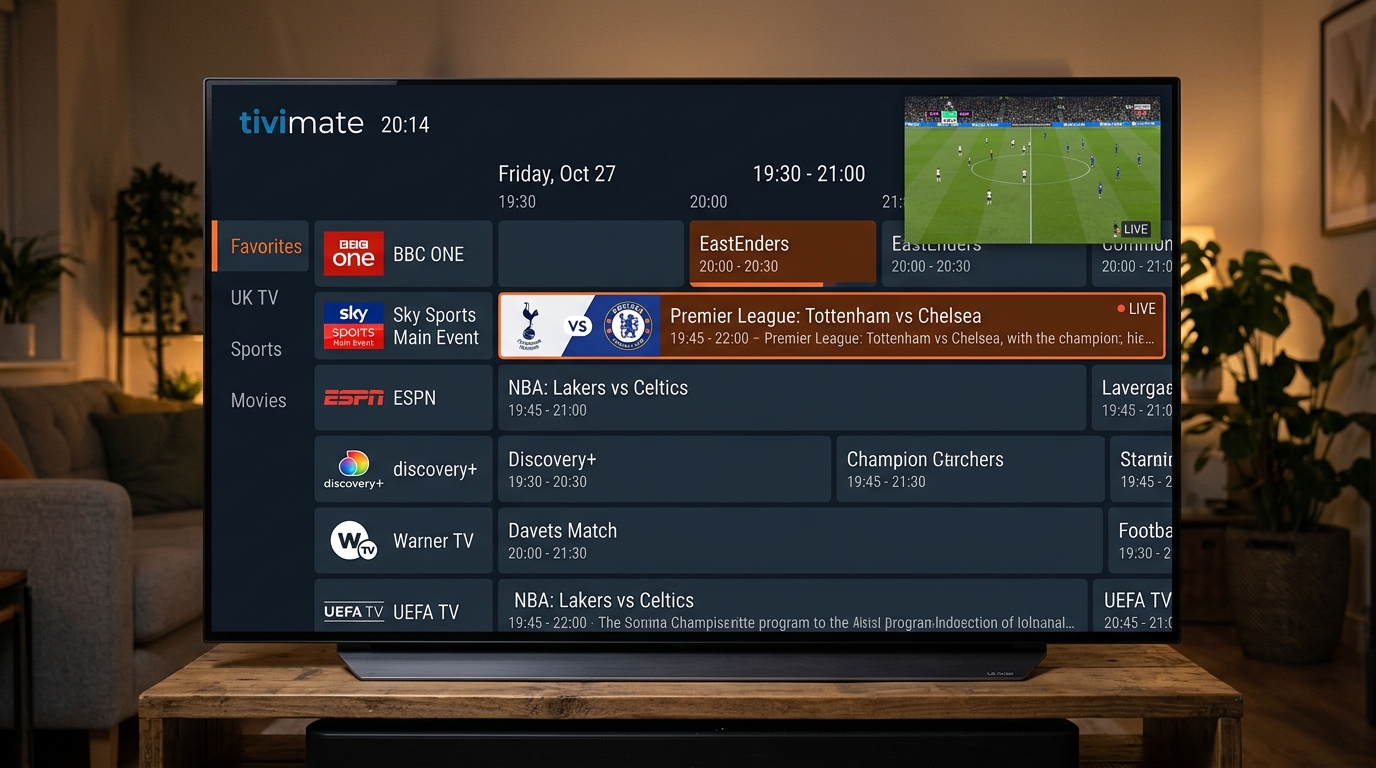
TiviMate is universally recognized as the standard by which all Firestick IPTV players are measured. Developed specifically for Android TV and Fire OS interfaces, TiviMate provides a seamless television experience that mirrors high-end cable and satellite set-top boxes.
The application shines in its Electronic Program Guide navigation, offering instant scrolling across thousands of channels without interface stutter. Power features in the premium edition include multi-screen viewing for up to nine simultaneous live games, scheduled video recording (DVR) to network-attached storage or USB drives, custom channel group reordering, and automated EPG scheduling intervals.
2. IPTV Smarters Pro: Versatile and Beginner-Friendly
IPTV Smarters Pro remains the most widely installed IPTV application across streaming platforms. Its popularity stems from an intuitive dashboard that separates Live TV, Movies, Series, and Catch-up into distinct, easily accessible cards.
The application supports native Xtream Codes API integration, multi-user profiles for family households, parental controls, and integrated subtitles via external player switching. While its traditional grid guide is slightly less customizable than TiviMate, its zero-cost baseline and straightforward login make it an ideal starting point for Firestick users.
3. XCIPTV Player: Lightweight Architecture for Firestick Lite
XCIPTV Player offers a modern, interactive dashboard built on top of ExoPlayer and VLC media engines. The interface features large interactive tiles and built-in speed test utilities, making network verification simple directly from the main menu.
Because XCIPTV manages background system memory efficiently, it runs remarkably well on older Fire TV hardware with 1 GB of RAM. The player features comprehensive EPG reminder notifications, backup and restore configurations, and full compatibility with BunnyStream Xtream Codes playlists.
4. iMPlayer: Advanced Cloud Sync and Modern Playback
iMPlayer is a feature-rich IPTV client tailored for viewers who demand modern design aesthetics and cloud management. One of its standout capabilities is remote cloud playlist management, allowing users to configure channels and settings on a desktop computer and push updates straight to their Firestick.
iMPlayer supports multi-screen mode, automated catch-up syncing, advanced audio pass-through for Dolby Digital 5.1 soundbars, and custom channel filtering. While the advanced feature set presents a steeper learning curve for beginners, power streamers will appreciate its unmatched customization.
5. OTT Navigator IPTV: Maximum Customization and Filter Control
OTT Navigator is a powerhouse media player built for users who want granular control over every aspect of their streaming experience. It excels at parsing massive playlists containing tens of thousands of international channels without system lag.
The app offers sophisticated filtering tools that automatically group channels by studio, country, or resolution, alongside custom picture-in-picture (PiP) capabilities. Users can tweak video buffer durations, customize audio codecs, and configure automated channel recording directly within the player settings.
Feature Comparison of Top Firestick IPTV Players
Comparing technical capabilities across media players helps you select the software that aligns with your streaming preferences and hardware generation. The table below outlines core specifications across the leading contenders.
| Player Application | Pricing Model | EPG Interface | Xtream Codes Support | Multi-Screen & DVR | Recommended User |
|---|---|---|---|---|---|
| TiviMate IPTV Player | Freemium ($34.99 lifetime) | Premium TV grid with live preview | Yes (Instant sync) | Up to 9 screens & scheduled DVR | Dedicated sports and TV enthusiasts |
| IPTV Smarters Pro | Free (Optional Pro features) | Standard category layout | Yes (Native API) | Multi-view (4 screens) | Beginners and multi-device homes |
| XCIPTV Player | Free (Customizable) | Tile dashboard with dual players | Yes (Native API) | Basic multi-view | Users with older or budget Firesticks |
| iMPlayer | Freemium ($25 lifetime) | Modern dark UI with cloud sync | Yes (Advanced sync) | Multi-screen & catch-up playback | Power users seeking cloud management |
| OTT Navigator IPTV | Freemium ($15 lifetime) | Highly customizable guide lists | Yes (Custom headers) | Picture-in-picture & recording | Viewers wanting deep technical control |
How to Sideload and Set Up an IPTV Player on Firestick
Because premier applications like TiviMate and IPTV Smarters Pro are not hosted in the default Amazon Appstore due to platform catalog policies, Firestick owners install them via sideloading. Sideloading is a safe, standard procedure that takes less than five minutes using the verified Downloader utility. Step-by-step instructions for all hardware are also detailed in our IPTV device installation guides.
Step 1: Install the Downloader App and Enable Developer Options
Preparing your Fire TV Stick to install third-party player applications involves downloading the verified transfer utility and authorizing package installations.
- From your Firestick home screen, navigate to the Find menu and search for Downloader.
- Select the orange Downloader icon by AFTVnews, click Get or Download, and launch the application.
- Go to your Firestick Settings > My Fire TV > About.
- Highlight the device name and press the center remote button seven consecutive times until the screen displays “No need, you are already a developer.”
- Return to Settings > My Fire TV > Developer Options > Install Unknown Apps, find Downloader, and toggle the permission to ON.
Step 2: Download the Player APK and Connect BunnyStream
With installation permissions enabled, enter the official download URL or five-digit Downloader quick code for your chosen player application.
- Open Downloader, enter the official web address for TiviMate or IPTV Smarters Pro, and select Go.
- Once the APK package finishes downloading, click Install, and then select Done.
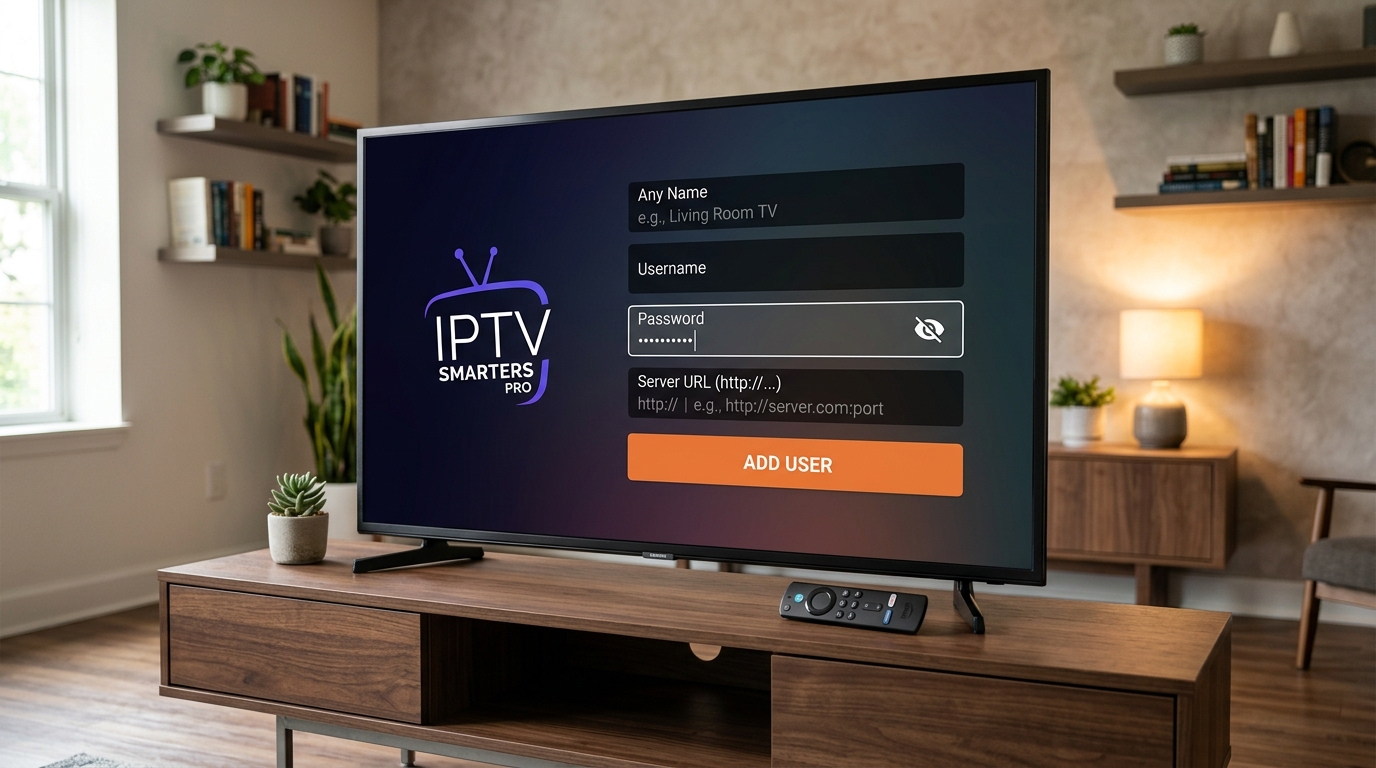
- Launch the installed IPTV player and choose the option to Login with Xtream Codes API.
- Enter your connection parameters: any descriptive playlist name, the Server URL, your username, and your password provided in your BunnyStream confirmation details.
- Click Add User or Next to allow the player to download your live channel categories, on-demand catalog, and program schedule.
Optimizing Firestick Settings for Buffer-Free Playback
Even with the best IPTV player installed, streaming high-bitrate live sports in 4K resolution requires fine-tuning your Fire TV hardware and network settings. Applying these configuration adjustments ensures smooth, uninterrupted viewing.
Adjusting Player Buffer Size and Video Decoders
Inside your media player settings, navigate to the playback configuration panel to optimize stream stability. Increasing the player buffer allocation from “None” to Medium (3–5 seconds) gives your Firestick a sufficient safety margin to absorb transient wireless network jitter without pausing the live video.
Additionally, verify that your video decoder is set to Hardware (HW). If a particular live stream experiences video stutter while audio remains audible, switch the decoder to Software (SW) or the secondary VLC playback engine inside your player preferences. For extensive troubleshooting steps on network speeds and ISP throttling, consult our comprehensive guide on how to stop IPTV buffering.
Managing Firestick Cache and Background Storage
Amazon Fire TV devices allocate system cache across applications as you browse channel guides and load high-resolution posters. When onboard storage drops below 1 GB, overall system performance degrades significantly.
- Navigate regularly to Settings > Applications > Manage Installed Applications, select your IPTV player, and choose Clear Cache.
- Avoid clicking “Clear Data” unless you wish to reset your stored login credentials and custom playlist configurations.
- Uninstall unused games and applications to keep at least 1.5 GB of free flash memory available for video caching.
- Power-cycle your Firestick once a week by unplugging the power adapter for 30 seconds to refresh background RAM.
Frequently Asked Questions
Which IPTV player is considered the best for Amazon Firestick?
TiviMate IPTV Player is widely regarded as the premier player for Firestick because of its native TV-optimized interface, lightning-fast Electronic Program Guide (EPG), and multi-screen support. IPTV Smarters Pro is the top free alternative with excellent cross-device compatibility.
Do IPTV players for Firestick include live TV channels or movies?
No. IPTV player apps are strictly media management software and do not supply any content or streaming channels. You must connect an active subscription playlist from a reliable provider like BunnyStream using M3U URLs or Xtream Codes API credentials.
How do I install an IPTV player on Firestick if it is not in the Amazon Appstore?
To install players not listed in the official Amazon Appstore, install the free Downloader application from the Appstore, enable developer options on your Fire TV, enter the official APK download URL or Downloader code, and follow the on-screen installation prompts.
What is the difference between Xtream Codes API and M3U playlists in Firestick apps?
Xtream Codes API is a structured login system requiring only a server URL, username, and password, which automatically organizes live categories, VOD titles, and EPG schedules. M3U playlists use a single long web address to fetch channel data, requiring manual refreshes and separate EPG links.
Elevate Your Firestick Streaming Experience
Selecting one of the best IPTV players for Firestick completely transforms your home entertainment, replacing cluttered cable boxes with a fast, modern television guide. Whether you choose the refined elegance of TiviMate or the approachable versatility of IPTV Smarters Pro, having the right software is half of the equation.
To unlock the full potential of your Fire TV Stick, pair your chosen media player with a robust, enterprise-grade streaming feed. Ready to enjoy crystal-clear live television? Explore BunnyStream subscription plans to power your player with over 30,000 live channels, 4K sports coverage, and Anti-Freeze 9.0 server reliability today.