To setup IPTV on Smart TV models from Samsung or LG, download a certified media player like IBO Player or IPTV Smarters Pro from the native app store, connect your subscription using Xtream Codes credentials or your TV MAC address, and optimize playback buffer settings. Unlike Android-based media devices, Samsung Tizen OS and LG webOS run closed operating environments that do not permit direct APK sideloading. By using approved native applications paired with a reliable provider like BunnyStream, you unlock over 30,000 live international channels and high-definition sports directly on your television display without purchasing external streaming hardware.
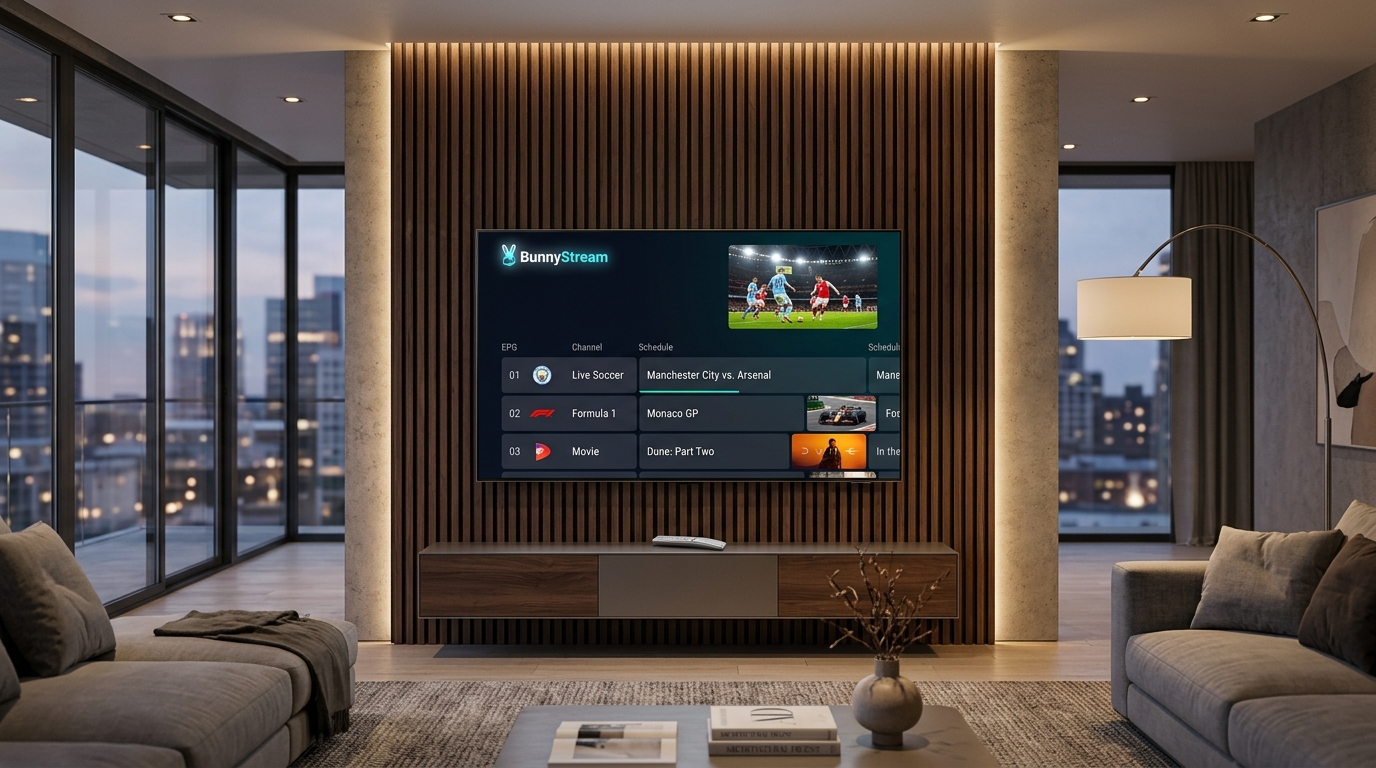
Understanding Smart TV Operating Systems: Tizen vs. webOS
Most television households today own either a Samsung or LG display. While both provide crisp panel technology, their software ecosystems differ fundamentally from Android TV and Amazon Fire OS.
Samsung operates on proprietary Tizen OS, whereas LG relies on webOS. Neither platform supports Google Play Store services or direct APK file installations, meaning all media player software must be downloaded directly through the manufacturer's curated content store.
Samsung Smart TV (Tizen OS) App Restrictions
Samsung Smart Hub enforces strict security sandboxing around third-party video apps. According to technical documentation in the Samsung Smart TV Developer Portal, media players must comply with Tizen web-app runtime specifications, restricting deep system memory caching.
Consequently, premier Android players like TiviMate cannot run on Samsung televisions. Viewers instead utilize purpose-built Tizen applications such as IBO Player, Nanomid, or Smart IPTV that manage video feeds efficiently within Tizen's memory constraints.
LG Smart TV (webOS) Architecture and App Availability
LG webOS provides a clean, launcher-card interface backed by web-centric application containers. As detailed in the LG webOS TV Developer Documentation, webOS utilizes HTML5 and WebKit frameworks to render user interfaces.
The LG Content Store hosts several high-performance IPTV clients, including IPTV Smarters Pro and IBO Player. These native webOS players interface smoothly with LG's Magic Remote cursor, allowing effortless channel scrolling and category filtering across massive playlist catalogs.
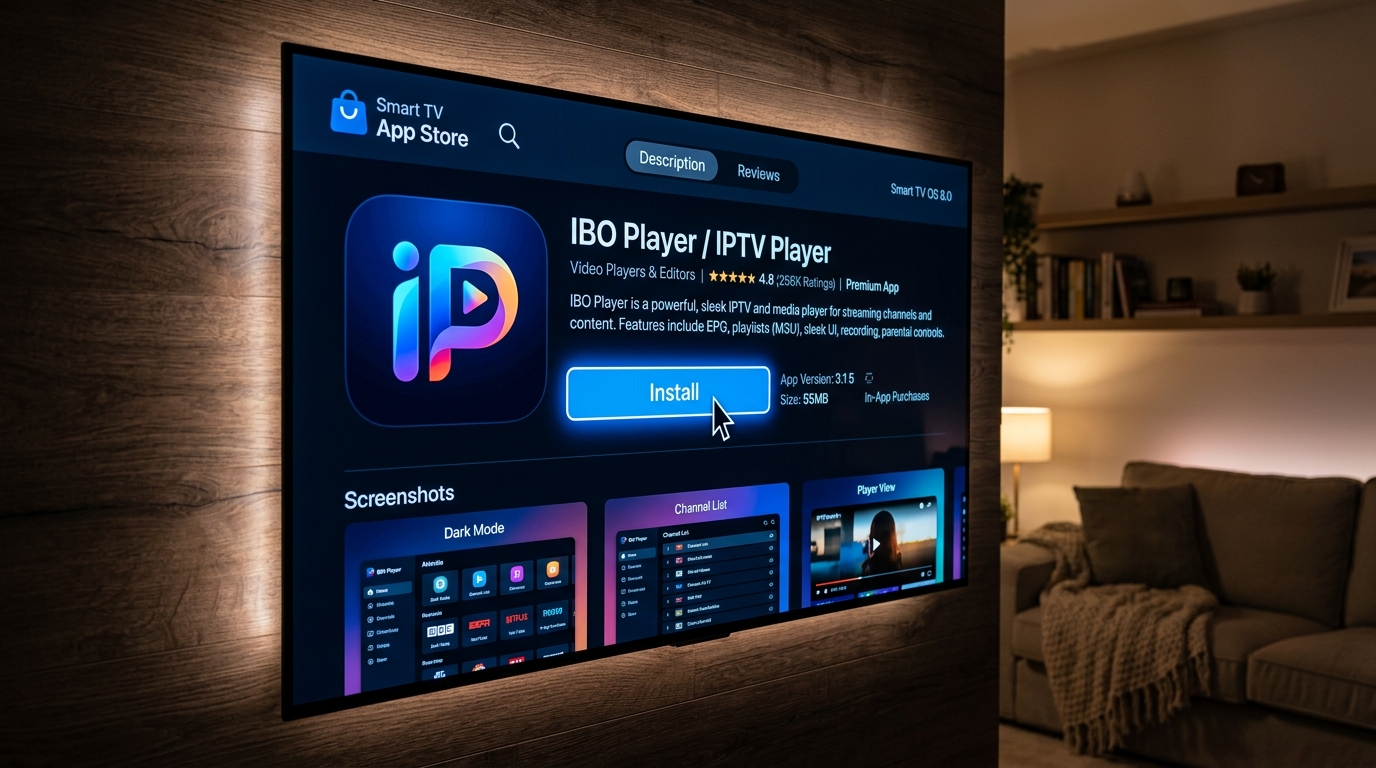
Best IPTV Player Apps for Samsung and LG Smart TVs
Selecting the right player software determines your interface speed, Electronic Program Guide (EPG) layout, and overall video stability. Below are the leading media player clients available on Samsung and LG platforms.
1. IBO Player: Premium Performance and Fast Navigation
IBO Player is widely considered the top-tier IPTV solution for modern Samsung and LG televisions. It features a lightweight codebase that launches in seconds, even on entry-level dual-core TV processors.
The application uses an external web portal activation model. Users simply enter their TV MAC address and Device Key on the IBO website to link their playlist. Once loaded, IBO Player provides smooth category grouping, fast channel switching, and reliable catch-up TV synchronization.
2. IPTV Smarters Pro: Native Category Management
IPTV Smarters Pro offers an intuitive dashboard that separates Live TV, Movies, Series, and Catch-up into dedicated interactive sections. It supports direct on-screen Xtream Codes API login, eliminating the need to visit an external website on your computer.
On LG webOS and newer Samsung Tizen models, IPTV Smarters Pro supports multiple user profiles, parental controls, and multi-subtitle selection. It remains the most approachable option for families wanting a familiar, box-style streaming interface.
3. Smart IPTV (SIPTV): Lightweight Legacy Solution
Smart IPTV is one of the earliest media players developed for connected televisions. Its streamlined interface presents a simple channel list and EPG timeline that operates with minimal CPU overhead.
SIPTV is especially valuable for older Smart TVs manufactured between 2016 and 2020 where newer graphical apps may lag. Activation is managed online via MAC address, providing dependable playback for standard live streams.
4. Nanomid Player: Advanced Codec Support
Nanomid Player is an advanced commercial media client designed specifically to overcome audio and video decoding limitations on Smart TVs. It integrates custom software decoders that resolve common no-sound errors on Samsung panels.
Additionally, Nanomid supports built-in VPN and proxy configurations directly inside the television application, helping bypass regional ISP bandwidth throttling without requiring router-level VPN setups.
Feature Comparison of Top Smart TV IPTV Players
The table below highlights critical technical differences across the premier player applications available on Samsung Tizen and LG webOS platforms.
| Player Application | Compatible OS | Setup Method | Xtream Codes API | EPG & Catch-Up | Best Suited For |
|---|---|---|---|---|---|
| IBO Player | Samsung Tizen & LG webOS | Web Portal (MAC + Key) | Yes (Via Portal) | Full EPG & Multi-lingual | Smooth everyday live streaming |
| IPTV Smarters Pro | Samsung Tizen & LG webOS | Direct On-Screen Login | Yes (Native API) | Integrated Grid & VOD | Families and VOD movie lovers |
| Smart IPTV (SIPTV) | Samsung Tizen & LG webOS | Web Portal (MAC Address) | M3U Playlist Only | Basic EPG Timeline | Older, low-memory televisions |
| Nanomid Player | Samsung Tizen & LG webOS | QR Code / Web Portal | Yes (Full Sync) | Advanced EPG & Catch-up | Solving audio and codec issues |
Step-by-Step Guide: How to Setup IPTV on Smart TV
Setting up your television involves installing your preferred player from the official app store and linking your playlist credentials. Follow these verified installation methods.
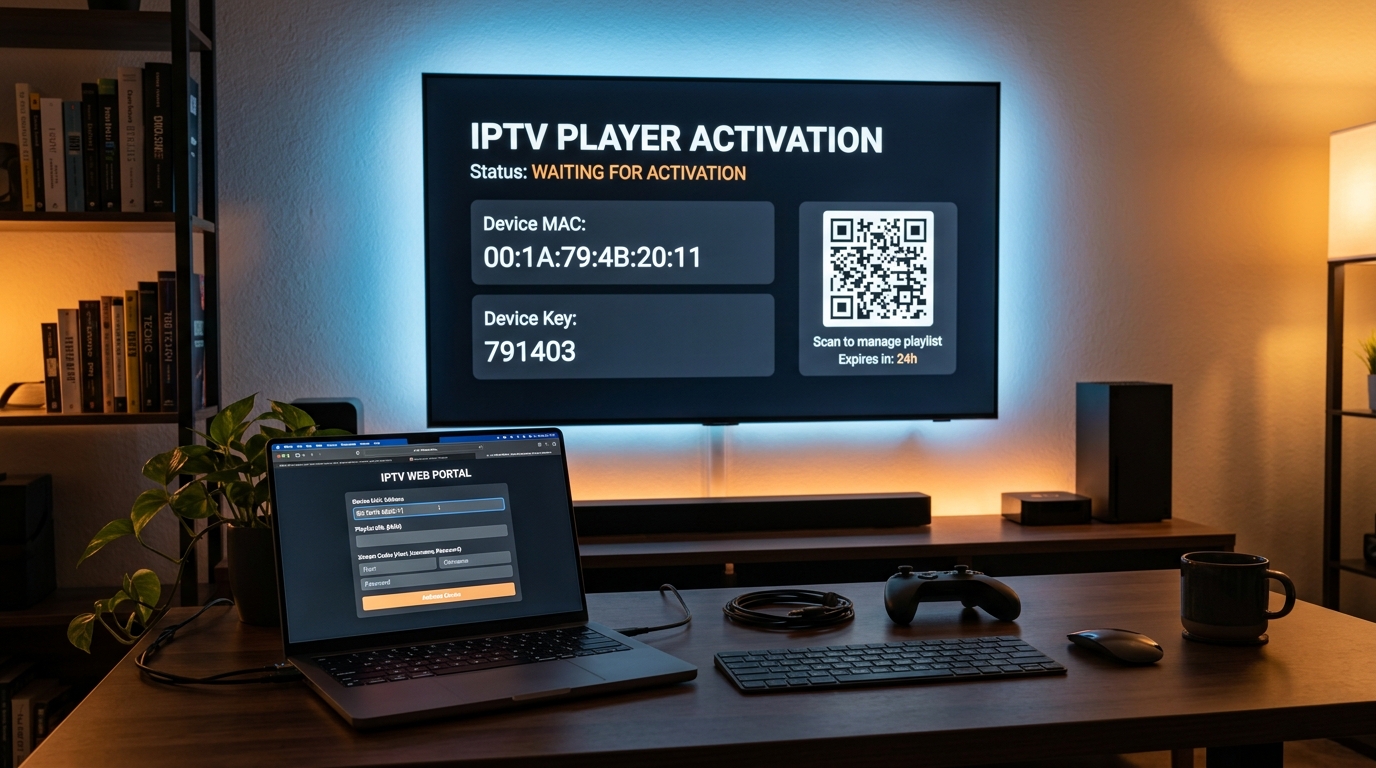
Method 1: Setup via MAC Address and Online Playlist Portal (IBO Player)
This is the most reliable method for Smart TVs because it offloads playlist processing from the television onto a remote server.
- Turn on your Samsung or LG TV and open the App Store (Samsung Smart Hub or LG Content Store).
- Search for IBO Player and click Install.
- Launch the application to display your unique Device MAC Address and Device Key on screen.
- On your smartphone or computer, open a web browser and visit the official IBO Player upload portal (iboplayer.com/device/login).
- Enter your TV's MAC address and Device Key to log into your device dashboard.
- Click Add Playlist, enter a label such as “BunnyStream”, and paste your M3U playlist URL or Xtream Codes details provided in your subscription email.
- Click Save, then return to your television and press Reload on your remote.
Method 2: Setup via Direct Xtream Codes API Login (IPTV Smarters)
If you prefer entering credentials directly with your TV remote without accessing a secondary computer, use IPTV Smarters Pro.
- Open your TV app store, search for IPTV Smarters Pro, and install the app.
- Launch the player and accept the terms of service.
- Select Add User and choose Login with Xtream Codes API.
- Fill in the four fields: Any Name (e.g., “BunnyStream Live”), your Username, your Password, and the Server URL (e.g., “http://domain.com:port”).
- Click Add User. The app will download your live channel categories, movie libraries, and EPG schedules directly to your television.
Optimizing Smart TV Settings for Buffer-Free Streaming
Smart TVs possess less RAM and processing power than dedicated streaming boxes like the Fire TV Cube or Apple TV. Fine-tuning your TV network parameters ensures steady, stutter-free playback during marquee live broadcasts.
Solving No Sound / Audio Codec Issues (DTS & AC3)
If a channel displays clear video but produces complete silence, your television lacks hardware decoding for that stream's audio codec. To fix this:
- Open your player's in-stream audio menu and switch the audio track from DTS to AAC or Dolby Digital (AC3).
- In your TV's main settings, navigate to Sound > Expert Settings > Digital Output Audio Format and set it to PCM or Pass-Through.
- If the issue persists, switch to Nanomid Player, which bundles internal software audio decoders.
Configuring Custom DNS (Cloudflare & Google) on Smart TV
Default internet service provider DNS servers frequently throttle or misroute high-bandwidth media packets during peak viewing hours. Replacing ISP DNS on your Smart TV improves channel load speeds.
- Go to TV Settings > General > Network > Network Status.
- Select IP Settings > DNS Setting and toggle from Auto to Enter Manually.
- Set the primary DNS server to 1.1.1.1 (Cloudflare) or 8.8.8.8 (Google DNS).
- Save settings and power-cycle your television to clear cached network routing tables.
Ethernet vs. Wi-Fi and Memory Management
Whenever possible, connect your Smart TV using a direct Cat6 Ethernet cable into the rear LAN port. Built-in Smart TV Wi-Fi antennas are positioned behind dense metal chassis and power supplies, making them susceptible to wireless interference. For comprehensive network optimization advice, explore our troubleshooting guide on how to stop IPTV buffering and streaming lag.
Additionally, clear background memory weekly. On Samsung TVs, hold down the remote power button for five seconds until the Samsung logo reappears to initiate a cold reboot and flush system RAM. Detailed steps for other devices are documented in our complete device installation tutorials.
Frequently Asked Questions
Can I install an IPTV player on my Samsung or LG Smart TV without a Firestick?
Yes. Both Samsung (Tizen OS) and LG (webOS) offer native IPTV applications directly in their official app stores, including IBO Player, IPTV Smarters Pro, Smart IPTV, and Nanomid. You do not need an external streaming stick or Android box to stream live television.
How do I upload my M3U playlist to a Smart TV using a MAC address?
When you open an app like IBO Player or Smart IPTV, note the TV MAC address and Device Key displayed on screen. Visit the player's official web management portal on a phone or computer, enter the MAC address, paste your BunnyStream M3U playlist URL, and click Save. Restart the TV app to load your channels.
Why do some live channels have video but no sound on Samsung Smart TV?
Modern Samsung TVs manufactured after 2018 discontinued native hardware decoding licenses for DTS audio tracks. If an IPTV stream uses DTS sound, the TV cannot decode it. You can fix this by changing the audio stream in player settings to AAC/AC3 or switching to a player with internal software decoding like Nanomid.
What is the difference between IBO Player and IPTV Smarters Pro on Smart TVs?
IBO Player is lightweight and uses an external web portal to manage playlists via MAC address, making it exceptionally fast on low-RAM Smart TV processors. IPTV Smarters Pro allows direct on-screen login using Xtream Codes API credentials without requiring a computer, but consumes slightly more memory.
Elevate Your Smart TV Entertainment with BunnyStream
Setting up IPTV directly on your Samsung or LG Smart TV simplifies your home theater, giving you instant access to thousands of live international channels, sports networks, and on-demand movies using your single television remote. With native apps like IBO Player and IPTV Smarters Pro, enjoying cable-free entertainment has never been easier.
Ready to transform your Smart TV experience? Explore BunnyStream subscription plans to unlock over 30,000 live channels, 4K sports feeds, and dedicated Anti-Freeze 9.0 server reliability tailored for Samsung and LG screens today.