To stream IPTV on Apple TV with pristine visual clarity and zero stutter, install a certified tvOS media player such as TiviMax or IPTV Smarters Pro from the App Store, connect your subscription using Xtream Codes API credentials, and enable tvOS frame rate matching in system video settings. While Apple enforces strict App Store developer guidelines, certified players run natively on tvOS without jailbreaking or sideloading. Pairing an Apple TV 4K with BunnyStream delivers unmatched power: lightning-fast Electronic Program Guide (EPG) navigation, multi-screen live sports, and buffer-free 4K Ultra HD entertainment backed by high-capacity servers.
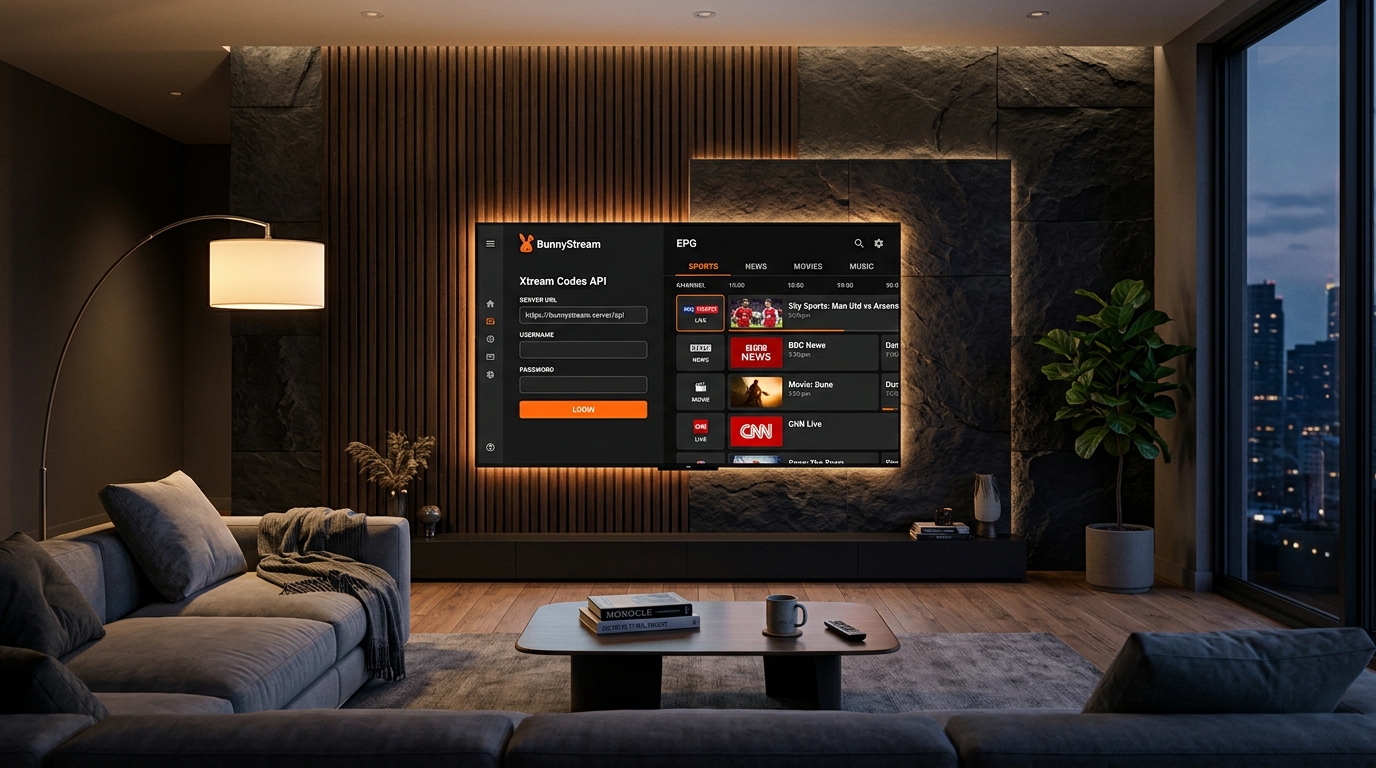
Why Apple TV 4K Is the Ultimate Hardware for IPTV Streaming
Many streaming enthusiasts transition from budget media sticks to Apple TV 4K to eliminate sluggish user interfaces and video frame drops. Budget streaming hardware frequently relies on quad-core microprocessors with 1 GB of memory, causing interface lag when indexing extensive channel catalogs.
In contrast, Apple TV 4K is powered by the desktop-class A15 Bionic processor paired with 4 GB of RAM and dedicated GPU cores. This horsepower allows tvOS players to download, parse, and render playlists containing tens of thousands of channels in seconds without overheating or memory exhaustion.
Automated Frame Rate and Dynamic Range Matching
A major advantage of Apple TV over other streaming boxes is its system-level display synchronization. Live television broadcasts vary widely in frame frequency: North American sports stream at 60 Hz, European football broadcasts at 50 Hz, and movies render at 24 Hz.
According to technical specifications in the official Apple tvOS Developer Documentation, Apple TV features automatic “Match Content” toggles for Frame Rate and Dynamic Range. When enabled, tvOS instructs your television panel to refresh at the exact cadence of the incoming video feed, eliminating judder during fast-paced live sports on IPTV.
Gigabit Ethernet and Clean Memory Architecture
While standard budget streaming devices limit wired networking to 100 Mbps Ethernet adapters, Apple TV 4K Ethernet models offer a full 1,000 Mbps gigabit port. This sustained bandwidth pipeline prevents packet loss when handling dense 4K feeds and concurrent multi-view streams.
Furthermore, tvOS features aggressive memory garbage collection and process isolation. Applications cannot hoard corrupted temporary files, ensuring your IPTV player maintains crisp responsiveness across months of continuous daily viewing.
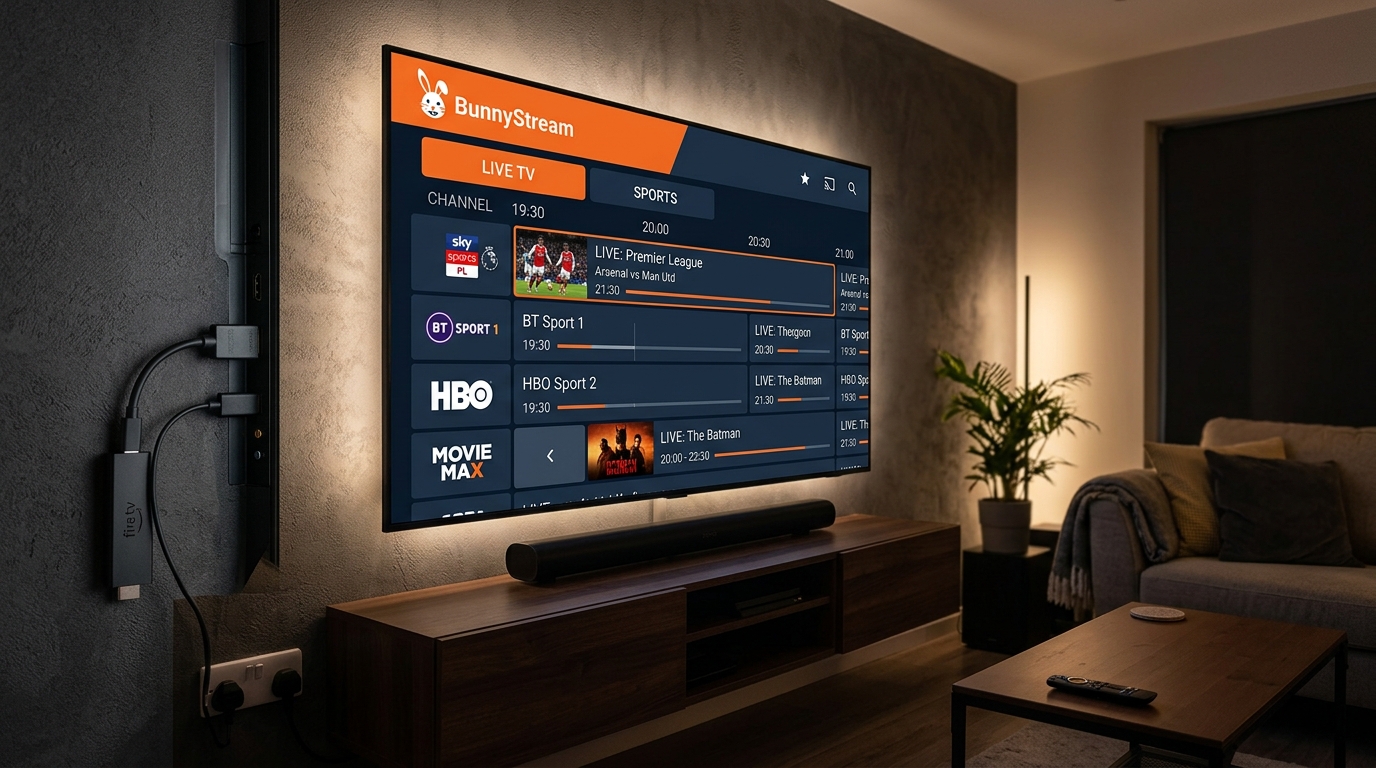
Top 5 Best IPTV Player Apps for Apple TV (tvOS) Tested
Because Apple restricts applications that bundle unauthorized video feeds, all approved tvOS IPTV players operate strictly as media managers. Users supply their own subscription credentials from a trusted provider like BunnyStream. Here are the leading tvOS IPTV players evaluated for performance, design, and stability.
1. TiviMax IPTV Player: The Premier tvOS Experience
TiviMax is designed specifically for Apple TV and iPadOS, offering an interface inspired by high-end Android TV clients like TiviMate. It provides a lightning-fast grid-style Electronic Program Guide with instant channel previews and fluid remote scrolling.
Key features include multi-screen viewing for up to four simultaneous live sports matches, customizable channel group ordering, multiple playlist management, and automated EPG scheduling updates. Its fluid integration with the Siri Remote touchpad makes browsing extensive channel lineups effortless.
2. IPTV Smarters Pro: Dependable and Beginner-Friendly
IPTV Smarters Pro remains the most widely recognized IPTV application in the streaming ecosystem. The tvOS edition features a clean dashboard separating Live TV, Movies, Series, and Catch-up into dedicated interactive sections.
The app supports direct Xtream Codes API login, multi-user household profiles, integrated subtitles, and external video player engines like the VideoLAN VLC media player. Its straightforward layout makes it ideal for viewers who want instant access without tweaking complex settings.
3. UHF: Modern Interface with iCloud Sync
UHF is a sleek, modern streaming client tailored specifically for the Apple ecosystem. One of its standout innovations is automatic iCloud synchronization, which shares your playlists, favorite channels, and watch progress across your Apple TV, iPhone, iPad, and Mac.
The application features a minimalist dark aesthetic, picture-in-picture (PiP) support, and integrated reminders for upcoming sporting events. UHF manages large on-demand libraries efficiently, displaying high-resolution movie posters and episode summaries.
4. GSE Smart IPTV: Versatile Multi-Protocol Client
GSE Smart IPTV is a venerable media solution that has supported iOS and tvOS for years. It supports virtually every streaming protocol available, including M3U URLs, JSON formats, and Xtream Codes API connections.
While its interface design feels more utilitarian compared to modern alternatives like TiviMax, GSE offers powerful diagnostic logging, custom HTTP user-agent configuration, and internal video decoders that handle diverse audio and video codecs.
5. iPlayTV: Classic Cable-Style Program Guide
iPlayTV focuses on delivering a traditional set-top box television experience. Its multi-column electronic guide displays detailed schedule overviews alongside live video playback in a dedicated preview frame.
The player supports automatic EPG mapping, channel search filters, and audio stream toggles. It is a robust option for viewers who prefer navigating live broadcasts through an expansive, full-screen television schedule.
Feature Comparison of Top Apple TV IPTV Players
Comparing key technical capabilities helps you identify the player application that best complements your streaming preferences and viewing environment.
| Player Application | App Store Availability | Connection Method | Multi-Screen (Multi-View) | iCloud Sync Across Devices | Recommended User |
|---|---|---|---|---|---|
| TiviMax IPTV Player | Official App Store | Xtream Codes & M3U | Yes (Up to 4 screens) | Yes (iCloud backup) | Sports fans & power users |
| IPTV Smarters Pro | Official App Store | Xtream Codes API | Yes (Built-in multi-view) | No (Device specific) | Families and casual viewers |
| UHF | Official App Store | Xtream Codes & M3U | Picture-in-Picture (PiP) | Yes (Complete Apple sync) | Viewers on Apple TV, iPad & iPhone |
| GSE Smart IPTV | Official App Store | M3U, Xtream, JSON | No | Manual backup export | Advanced technical users |
| iPlayTV | Official App Store | Xtream Codes & M3U | Preview window mode | Yes (iCloud sync) | Traditional cable-guide fans |
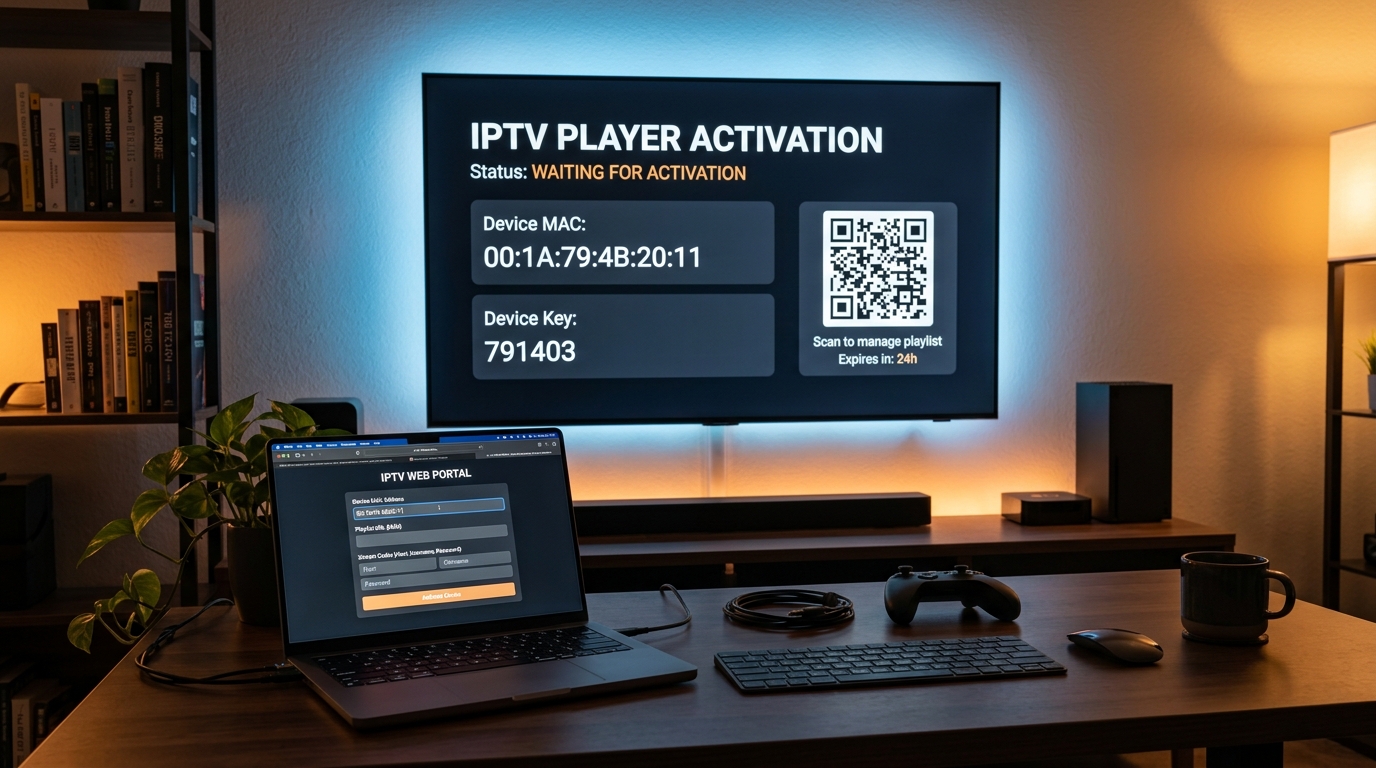
Step-by-Step Guide: How to Setup IPTV on Apple TV
Setting up your subscription on tvOS involves downloading your chosen player from the App Store and connecting your BunnyStream credentials. We strongly recommend using Xtream Codes API rather than raw M3U links for faster loading and automated TV guide syncing, as detailed in our guide on Xtream Codes API vs M3U playlists.
Step 1: Install Your Chosen Player from the tvOS App Store
Begin by downloading your preferred player directly to your Apple TV:
- Power on your Apple TV 4K and launch the App Store from your home screen.
- Navigate to the search tab and enter the name of your desired player (e.g., TiviMax, IPTV Smarters Pro, or UHF).
- Select Get or the download icon to install the application.
- Open the newly installed player from your home screen.
Step 2: Connect Your BunnyStream Subscription via Xtream Codes
Connecting through Xtream Codes credentials organizes your channel categories and video-on-demand libraries automatically:
- Within the player setup menu, select Add Playlist and choose Login with Xtream Codes API.
- Enter a playlist title, such as “BunnyStream TV”.
- Enter your Server URL, Username, and Password provided in your BunnyStream welcome email.
- Tip: Use the Apple TV Remote on your iPhone to paste credentials directly, avoiding tedious on-screen typing.
- Click Login or Add User. The player will download channel categories, program schedules, and on-demand titles automatically.
Optimizing tvOS Settings for Smooth 4K 60 FPS Playback
While Apple TV 4K provides industry-leading processing power, adjusting a few core operating system settings ensures your display and audio system perform at their absolute best.
Enabling Match Dynamic Range and Match Frame Rate
By default, tvOS may force all video into HDR10 or Dolby Vision mode, artificially boosting color saturation on standard-definition channels. To preserve broadcast accuracy and prevent micro-stutter:
- Open Apple TV Settings > Video and Audio.
- Set your default format to 4K SDR (60 Hz or 59.94 Hz) with HDMI output set to YCbCr.
- Navigate to Match Content and toggle both Match Dynamic Range and Match Frame Rate to ON.
- When streaming live sports or cinema, your TV will automatically switch to the exact native refresh rate of the broadcast feed.
Audio Pass-Through and Hardware Ethernet Connection
For multi-channel soundbars and AV receivers, verify that audio output is configured correctly in Settings > Video and Audio > Audio Format. Keep “Change Format” set to OFF so Apple TV can output uncompressed LPCM surround sound natively.
Additionally, connect your Apple TV via an Ethernet cable whenever possible. Even with Wi-Fi 6, physical cabling eliminates wireless packet jitter during high-demand weekend sports viewing. For comprehensive home network tuning, consult our guide on how to stop IPTV buffering and streaming lag. If you also own other devices, check our best IPTV players for Firestick or our Smart TV IPTV setup guide.
Frequently Asked Questions
Can you install an IPTV player directly from the Apple TV App Store?
Yes. Apple allows certified media player applications on the tvOS App Store, including TiviMax, IPTV Smarters Pro, GSE Smart IPTV, UHF, and Snappier. You do not need to jailbreak your Apple TV or sideload software to stream live television.
What is the best IPTV player application for Apple TV 4K?
TiviMax IPTV Player is widely regarded as the premier player for tvOS due to its fluid Electronic Program Guide (EPG), native Siri Remote trackpad gestures, and multi-view features. IPTV Smarters Pro and UHF are also top alternatives offering fast Xtream Codes login and iCloud sync.
Why is Apple TV 4K better for IPTV than budget streaming sticks?
Apple TV 4K features Apple's A15 Bionic processor, 4 GB of RAM, Gigabit Ethernet, and native tvOS frame rate matching. This hardware eliminates interface lag, parses massive channel playlists in seconds, and renders high-framerate 60 FPS sports broadcasts without dropped frames or thermal throttling.
How do I type my Xtream Codes credentials into Apple TV easily?
Instead of typing lengthy server URLs and passwords with the Siri Remote, use the Apple TV Remote widget in the iOS Control Center on your iPhone or iPad. When a text field opens on tvOS, an iOS keyboard notification appears, allowing you to paste your BunnyStream login details in seconds.
Elevate Your Apple TV Streaming with BunnyStream
Streaming IPTV on Apple TV unlocks the pinnacle of modern home television, pairing Apple's refined industrial design and raw processing power with unrestricted access to international entertainment. With native tvOS players like TiviMax and IPTV Smarters Pro, you gain a responsive cable-grade viewing experience on your living room screen.
Ready to power your Apple TV with premium high-definition entertainment? Explore BunnyStream subscription plans to unlock over 30,000 live channels, 4K sports broadcasts, and Anti-Freeze 9.0 server reliability. For step-by-step assistance across all your screens, review our complete device installation tutorials today.