To run IPTV on Android TV or Google TV devices with zero stutter, install an optimized media player like TiviMate or Sparkle TV directly from the Google Play Store, connect your service using Xtream Codes API credentials, and enable hardware video decoding in player settings. Unlike closed smart television platforms, Android TV OS offers open hardware acceleration, native storage expansion for DVR recording, and direct integration with your remote control directional pad. Pairing your Android TV box or Google TV screen with BunnyStream unlocks over 30,000 live channels, 4K 60 FPS sports coverage, and Anti-Freeze 9.0 server routing engineered for peak stability.
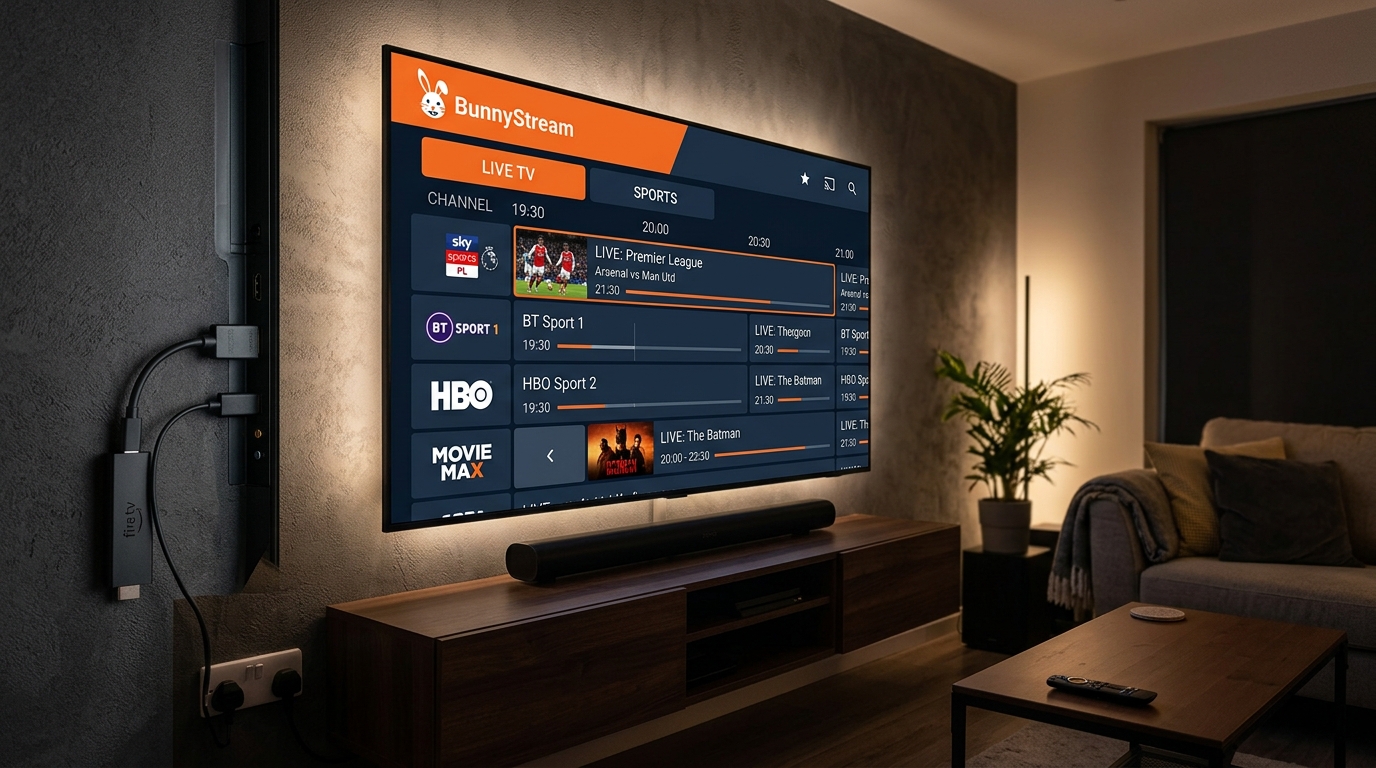
Why Android TV and Google TV Outperform Other Streaming Platforms
Android TV OS and Google TV represent the most flexible television operating environments on the consumer market. While budget streaming sticks often struggle with thermal throttling and closed smart TV systems restrict third-party apps, Android TV provides direct access to system decoders, network drivers, and external USB storage.
Devices powered by modern Amlogic, Realtek, or NVIDIA Tegra processors process dense video packets through dedicated graphical compute pipelines. This hardware architecture ensures that high-bitrate live feeds maintain 60 frames per second without frame pacing jitter or audio desynchronization.
Hardware Acceleration: ExoPlayer and System Video Codecs
Under official guidelines published in the Google Android TV Developer Documentation, Android TV relies on the modular ExoPlayer media framework. ExoPlayer directly interfaces with device-level MediaCodec APIs, offloading H.264, HEVC/H.265, and AV1 video streams onto the graphics processor.
By leveraging hardware (HW) decoding rather than CPU-bound software decoding, your streaming box stays cool during long viewing sessions. This prevents the processor downclocking that causes playback stutter during intensive broadcasts like live sports on IPTV.
Native Play Store Access vs. Sideloading Workarounds
Unlike Amazon Fire TV devices that require third-party Downloader utilities to sideload software, certified Android TV boxes include the native Google Play Store. You install, update, and license IPTV players securely using your standard Google account.
Furthermore, Android TV OS supports automated background app updates. When developer patches resolve streaming protocol changes or operating system updates, your media players update quietly without manual APK re-installations.
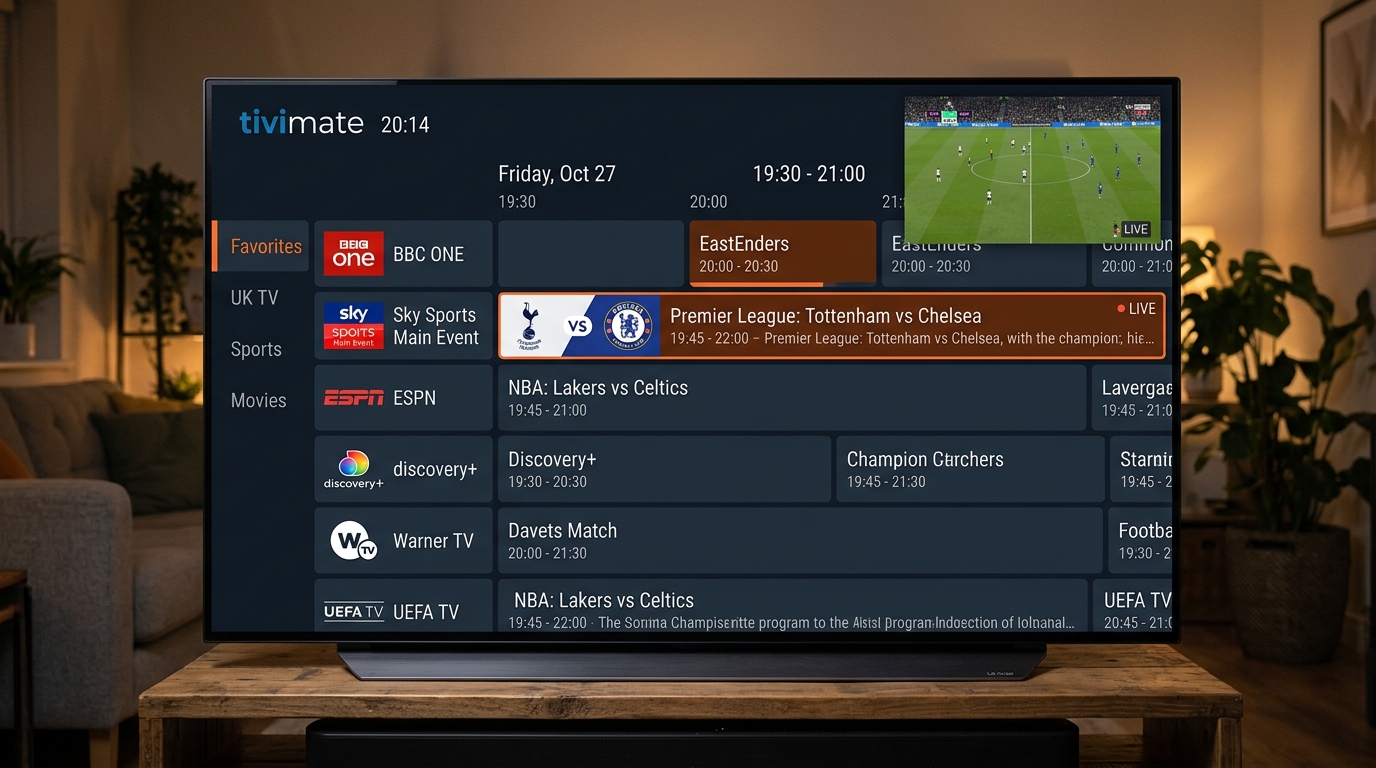
Top 5 Best IPTV Player Apps for Android TV & Google TV
Dedicated media players decode incoming video streams, synchronize program schedules, and organize on-demand libraries. These applications do not provide broadcast content themselves; they connect to your BunnyStream subscription playlist. Below are the top five applications tested on Android TV and Google TV.
1. TiviMate IPTV Player: The Benchmark for Android TV
TiviMate was engineered specifically from the ground up for Android TV remote controls, delivering an interface that rivals premium satellite set-top boxes. It handles massive playlists containing tens of thousands of channels without interface hesitation.
Power features in TiviMate Premium include multi-view streaming for up to nine simultaneous live feeds, custom channel group management, scheduled DVR recording to local or network-attached storage (SMB), and automated EPG guide refresh intervals. Its swift channel switching makes it the undisputed gold standard for Android TV owners.
2. Sparkle TV: Modern Design with Timeshift and DVR
Sparkle TV is a rapidly rising contender that integrates directly with Android TV home screen “Play Next” rows and launcher channels. It provides an elegant dark-mode electronic program guide, automated catch-up TV playback, and robust multi-screen capabilities.
The application supports both Xtream Codes API and M3U playlists, with built-in pause, rewind, and fast-forward controls for supported live streams. Sparkle TV also supports external XMLTV program guides and parental lock controls for family households.
3. IPTV Smarters Pro: Dependable Category Organization
IPTV Smarters Pro offers an accessible tile-based dashboard that categorizes Live TV, Movies, Series, and Catch-up into clean, dedicated cards. It supports direct on-screen login using Xtream Codes credentials without requiring complex manual setup.
On Android TV, IPTV Smarters Pro supports dual internal video players (ExoPlayer and VLC engine), multi-user profiles, and integrated subtitle selection. It is an ideal starting option for viewers who want intuitive navigation without configuring advanced guide parameters.
4. Televizo: Clean Interface and Low Memory Footprint
Televizo is a lightweight IPTV client designed to maximize performance on budget streaming sticks and entry-level Android televisions with 1 GB to 2 GB of RAM. It loads channel lists in seconds and maintains low background memory consumption.
The player features an uncluttered channel layout, picture-in-picture (PiP) support, custom audio track selection, and external video player integration via the VideoLAN VLC media player. It delivers dependable daily playback without unnecessary visual bloat.
5. OTT Navigator IPTV: Granular Technical Customization
OTT Navigator is tailored for advanced users who demand deep configuration control over their video feeds. The app provides custom stream filtering, allowing viewers to automatically sort channels by resolution (4K, FHD, HD), studio, or country code.
Additionally, OTT Navigator provides automated stream quality switching, manual buffer cache sizing from 1 to 15 seconds, and custom audio equalizers. It parses complex playlists with minimal CPU overhead.
Feature Comparison of Top Android TV IPTV Players
The table below outlines critical technical capabilities across the leading Android TV and Google TV player applications.
| Player Application | Google Play Store | Connection Protocol | Multi-Screen (Multi-View) | DVR Recording Support | Best Suited For |
|---|---|---|---|---|---|
| TiviMate IPTV Player | Yes (Native TV app) | Xtream Codes & M3U | Yes (Up to 9 screens) | Yes (Local, USB & SMB) | Sports enthusiasts & power streamers |
| Sparkle TV | Yes (Native TV app) | Xtream Codes & M3U | Yes (Up to 4 screens) | Yes (Timeshift & DVR) | Modern Google TV launcher integration |
| IPTV Smarters Pro | Yes (Free / Pro) | Xtream Codes API | Yes (Multi-view grid) | No | Families and casual live TV viewers |
| Televizo | Yes (Free / Premium) | Xtream Codes & M3U | Picture-in-Picture | No | Budget hardware & low-RAM devices |
| OTT Navigator IPTV | Yes (Free / Premium) | Xtream Codes & M3U | Yes (PiP & Studio view) | Yes (Manual recording) | Users wanting granular filter controls |
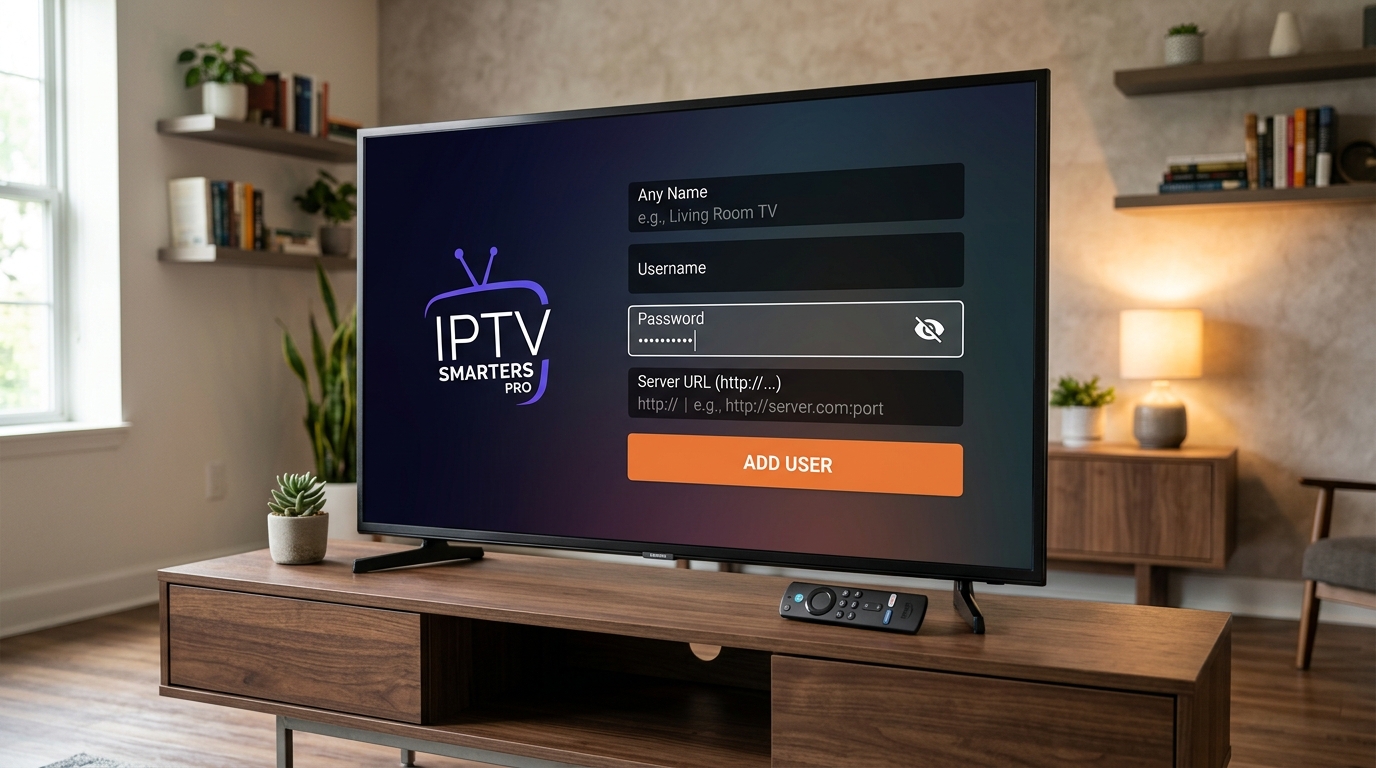
Step-by-Step Guide: How to Setup IPTV on Android TV
Setting up your subscription takes less than five minutes using your Google account and remote control. Always select the Xtream Codes API connection method rather than a raw M3U link; as detailed in our guide on Xtream Codes API vs M3U playlists, API connections prevent device freezing by querying channel lists in lightweight JSON packets.
Step 1: Install Your Chosen Player from the Google Play Store
Download your preferred media player directly to your television:
- Power on your Android TV or Google TV and select the Apps tab on your home screen.
- Open the Google Play Store and use the search bar or voice remote to search for TiviMate or Sparkle TV.
- Click Install to download the application directly to your hardware.
- Launch the player once the installation completes.
Step 2: Connect Your BunnyStream Subscription via Xtream Codes
Authenticate your subscription to populate channel listings:
- Select Add Playlist and choose Xtream Codes login.
- Enter a descriptive server name, such as “BunnyStream Live”.
- Input your Server URL, Username, and Password received in your BunnyStream subscription activation email.
- Check the box to include Video on Demand (VOD) titles and series if your player presents the option.
- Click Next or Done. Your device will connect to BunnyStream server clusters and load your full channel guide within seconds.
Optimizing Android TV Settings for Buffer-Free 4K Streaming
While dedicated Android TV hardware provides robust video processing, configuring your operating system and network parameters prevents bandwidth dips during high-traffic sports broadcasts.
Hardware Video Decoders and Auto Frame Rate (AFR)
Inside your IPTV player settings, navigate to the Playback menu. Confirm that your video decoder is set to Hardware (HW) or Hardware+. If an individual sports stream displays video stutter while audio remains normal, switch the decoder to ExoPlayer or VLC engine within player preferences.
Additionally, if your device runs Android TV 12 or newer (such as Chromecast with Google TV), enable Match Content Frame Rate in system display settings. This synchronizes your television refresh rate with incoming 50 Hz European football or 60 Hz North American sports feeds, eliminating micro-judder.
Buffer Size Allocation and Ethernet Networking
Adjusting player memory buffering provides an essential buffer against wireless network fluctuations:
- In your player's playback settings, set the buffer size to Medium (3–5 seconds). A modest buffer absorbs transient Wi-Fi jitter without creating noticeable channel-switching lag.
- Connect your Android TV box via a direct Cat6 Ethernet cable into your router or install gigabit Powerline adapters. Wired connections eliminate packet loss common to crowded 2.4 GHz wireless bands.
- If you experience periodic speed drops during peak evening viewing windows, your internet provider may be throttling high-bandwidth video ports. Review our proven network remedies in how to stop IPTV buffering and streaming lag.
- For setup guides across other hardware in your household, explore our best IPTV players for Firestick, Smart TV IPTV setup guide, or our IPTV on Apple TV walkthrough.
Frequently Asked Questions
Can you install IPTV player apps directly from the Google Play Store on Android TV?
Yes. The official Android TV Google Play Store hosts verified player applications including TiviMate, Sparkle TV, IPTV Smarters Pro, and Televizo. These apps do not host any media themselves; you connect your active BunnyStream subscription credentials to load live channels.
What is the best IPTV player application for Android TV and Google TV?
TiviMate IPTV Player is the highest-rated app for Android TV due to its cable-grade EPG guide, multi-screen viewing for up to 9 matches, scheduled DVR recording, and native remote control optimization. Sparkle TV and Televizo are strong alternatives.
What is the difference between Android TV OS and Google TV for IPTV streaming?
Google TV is an updated software interface built on top of Android TV OS. Both run the same underlying video playback engines, ExoPlayer decoders, and Google Play Store apps, but Google TV offers integrated content aggregation and modern launcher channel rows.
How much internet speed is required to stream 4K live sports on an Android TV box?
Uncompressed 4K sports streaming at 60 FPS requires a dedicated downstream speed between 35 and 50 Mbps per screen. For 1080p Full HD at 60 FPS, a steady connection of at least 25 Mbps with packet ping latency under 30 ms is recommended.
Upgrade Your Android TV Entertainment with BunnyStream
Running IPTV on Android TV provides the pinnacle of customizable, cable-free entertainment. With high-performance applications like TiviMate and Sparkle TV, you combine the responsiveness of modern Android hardware with comprehensive international channel access on your living room screen.
Ready to power your Android TV box with premium live television? Explore BunnyStream subscription plans to unlock over 30,000 live channels, dedicated 4K sports servers, and Anti-Freeze 9.0 stability. For detailed step-by-step assistance across every screen in your home, consult our complete device installation tutorials today.